This is my personal project made to participate in the "Flow Programming Challenge" from Epic IO.
The challenge consists of building a system based on 4 containerized software components (Apache Kafka, Apache NiFi, Node-RED, and a producer). This system is responsible for processing vehicle-related data, transforming messages, and storing them formatted in a database. It also displays alerts on a Node-RED dashboard based on vehicles that meet certain criteria. The programs communicate with each other through a Docker network named 'epic-net'.
In this document I'm going to explain how to deploy the project.
- Follow the next steps to succesfully deploy the project
-
You will need Docker and Docker Compose installed in your computer.
-
You simply need to create a Docker network called
epic-netto enable communication between the services.
$ docker network create epic-net- Spin up the local single-node Kafka cluster (will run in the background):
$ docker-compose -f docker/docker-compose.kafka.yml up -d- Check the cluster is up and running (wait for "started" to show up):
$ docker-compose -f docker/docker-compose.kafka.yml logs -f kafka-1 | grep "started"- Start the detections producer (will run in the background):
$ docker-compose -f docker/docker-compose.producer.yml up -d- Start the Nifi and Nifi-Registry services
$ docker-compose -f docker/docker-compose.nifi.yml up -d-
After the Nifi docker-compose is up you will need to get the generated Username and Password to access Nifi.
- For Username
$ docker logs docker_nifi_1 | grep "Generated Username"
- For Password
$ docker logs docker_nifi_1 | grep "Generated Password"
-
After you login Apache Nifi you have to import the epic-network-template.xml that is located in the "templates" directory and place it on the workspace.
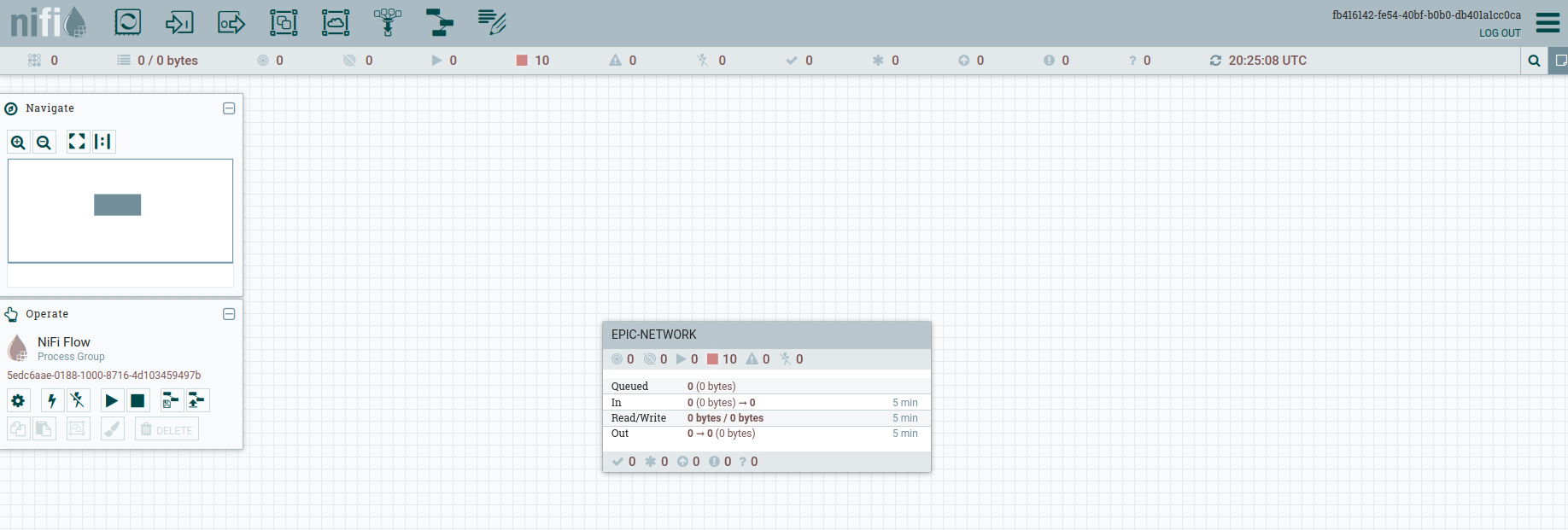
- If you see EPIC-NETWORK group everything is correct.
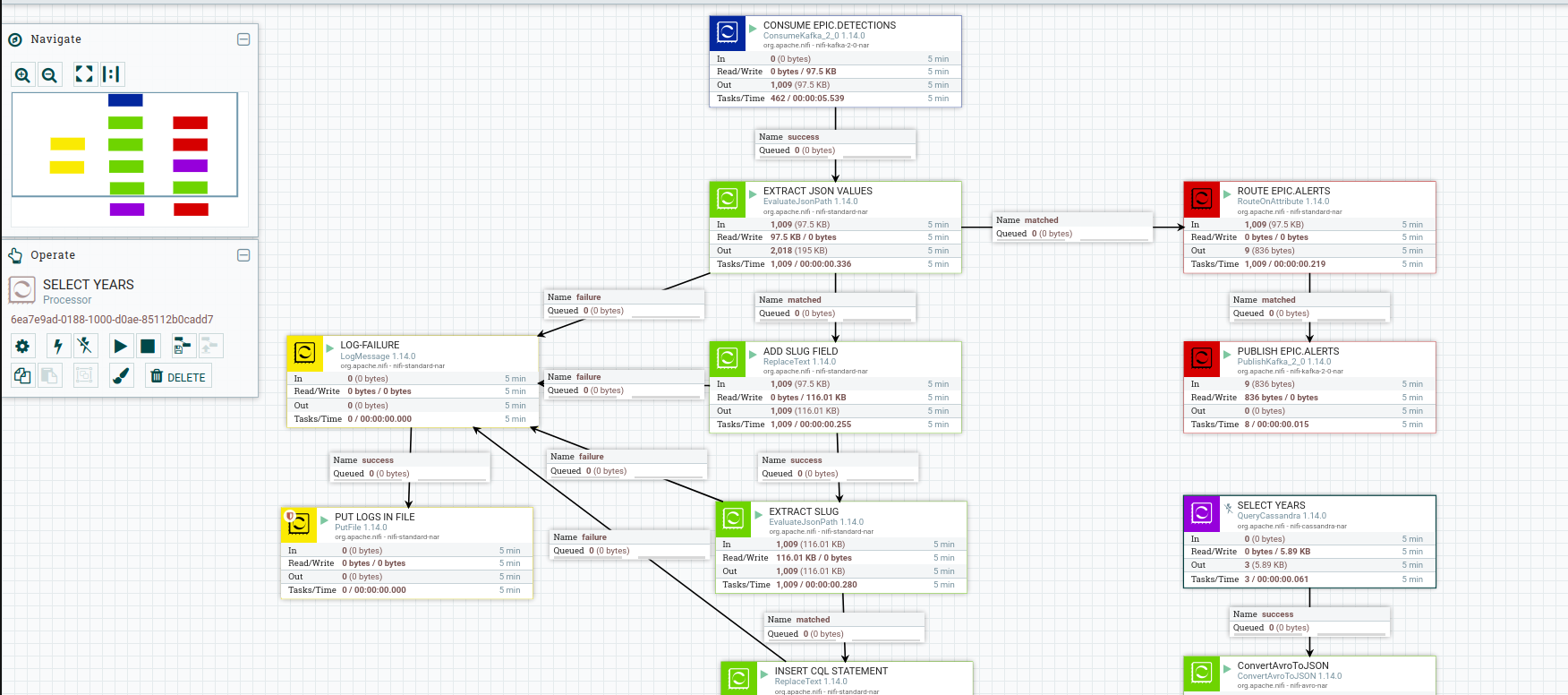
-
All processors are located within EPIC-NETWORK
-
Now set the database password in PUT CASSANDRA and SELECT YEARS processors. This is required because Apache Nifi doesn't save passwords in templates configuration.
User: admin
Password: admin-
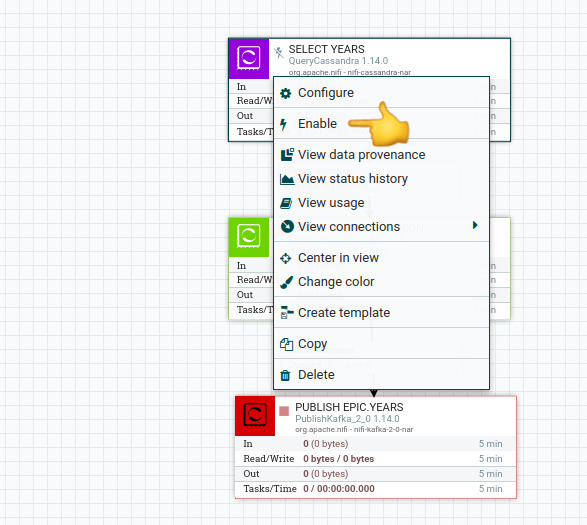
By default, the SELECT YEARS processor will be disabled to bypass the flow when pressing start and avoid generating unnecessary queries. Then, it will need to be enabled to generate the necessary query to display the histogram on the front-end.
-
Last step is enable CassandraSessionProvider in the EPIC-NETWORK configuration.

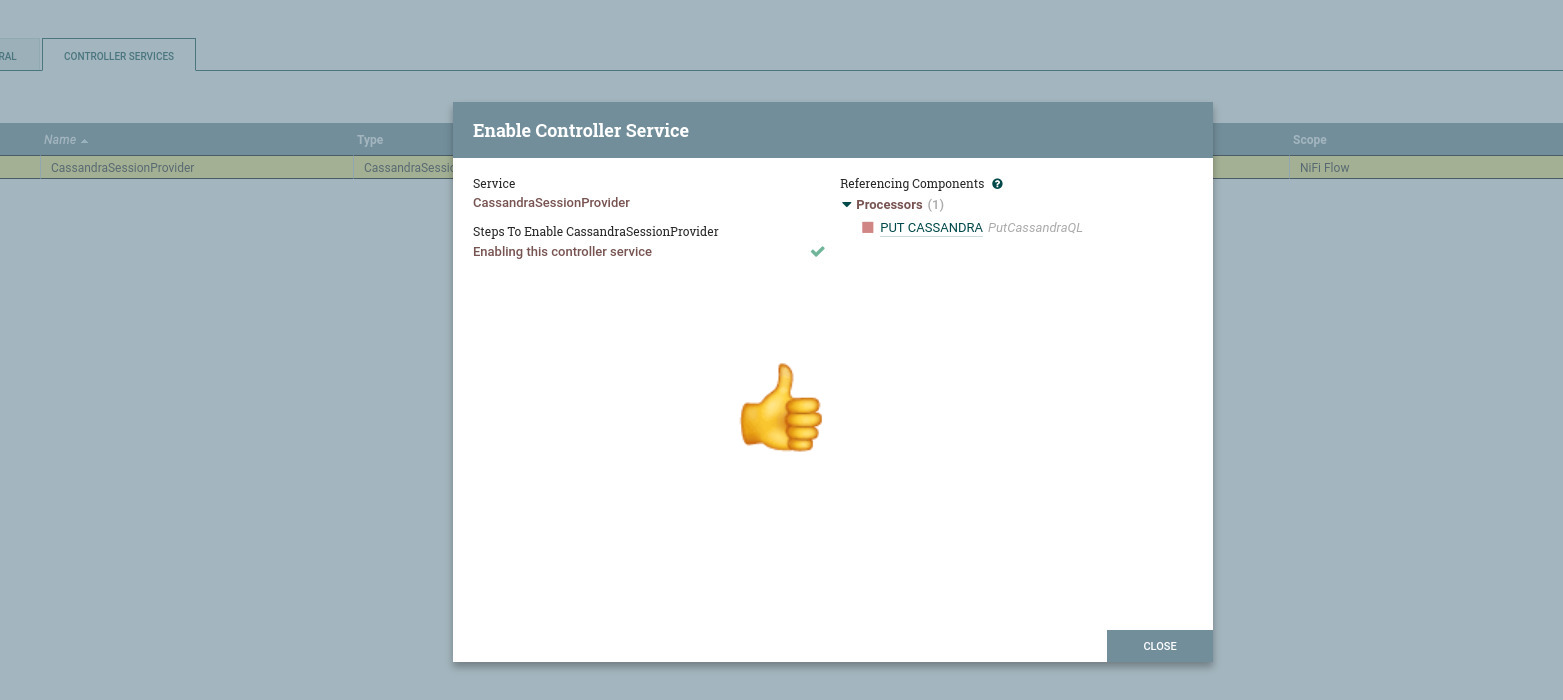
In this project I will use a Cassandra database because:
-
Native Integration: Apache NiFi has a specific processor called "PutCassandraRecord" that allows writing data directly into a Cassandra database. This native integration simplifies the workflow and configuration when using both systems together
-
Scalability and Performance: Both Apache NiFi and Cassandra are designed to be highly scalable and handle large volumes of data.
-
Fault Tolerance and High Availability: Both Apache NiFi and Cassandra are designed to be fault-tolerant and ensure data availability.
-
Real-time Data Streaming Compatibility: Apache NiFi is known for its real-time data processing capabilities. When combined with Cassandra, you can create real-time data processing systems that efficiently store and query data.
-
Start cassandra-node service
$ docker-compose -f docker/docker-compose.cassandra.yml up -d-
Now we have to create the 'epicnet' keyspace and the table 'cars' that is going to store the telemetry data
-
Accessing Cassandra container
$ docker exec -it cassandra-node bash- Entering Cassandra terminal
cqlsh- Create 'epicnet' keyspace
create keyspace epicnet with replication = {'class': 'SimpleStrategy', 'replication_factor': 1};- Create 'cars' table
CREATE TABLE cars ( id UUID PRIMARY KEY, year int, make text, model text, category text, slug text );- Now Cassandra database is ready to be used.
- Start node-red service
$ docker-compose -f docker/docker-compose.nodered.yml up -d- Open Node-RED in the localhost
localhost:1880-
Node-RED saves configurations by default, but in case you need them, I will list the necessary installations for the system to work.
-
Necessary installations:
- Install node-red-contrib-kafka-manager
- Install node-red-dashboard
-
These installations are intended to use the latest Node-RED node packages.
-
Then, if you require, import the flow.json file, which is located in the templates directory.
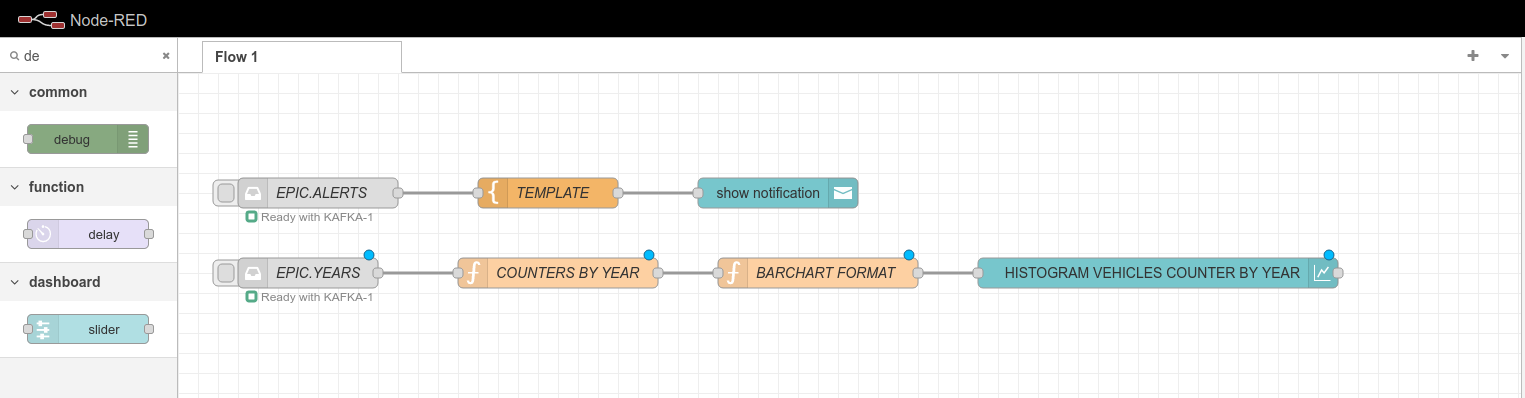
- If you see this, everything is correct!
- With all the producers running, we just need to start our Nifi Flow for the system to work
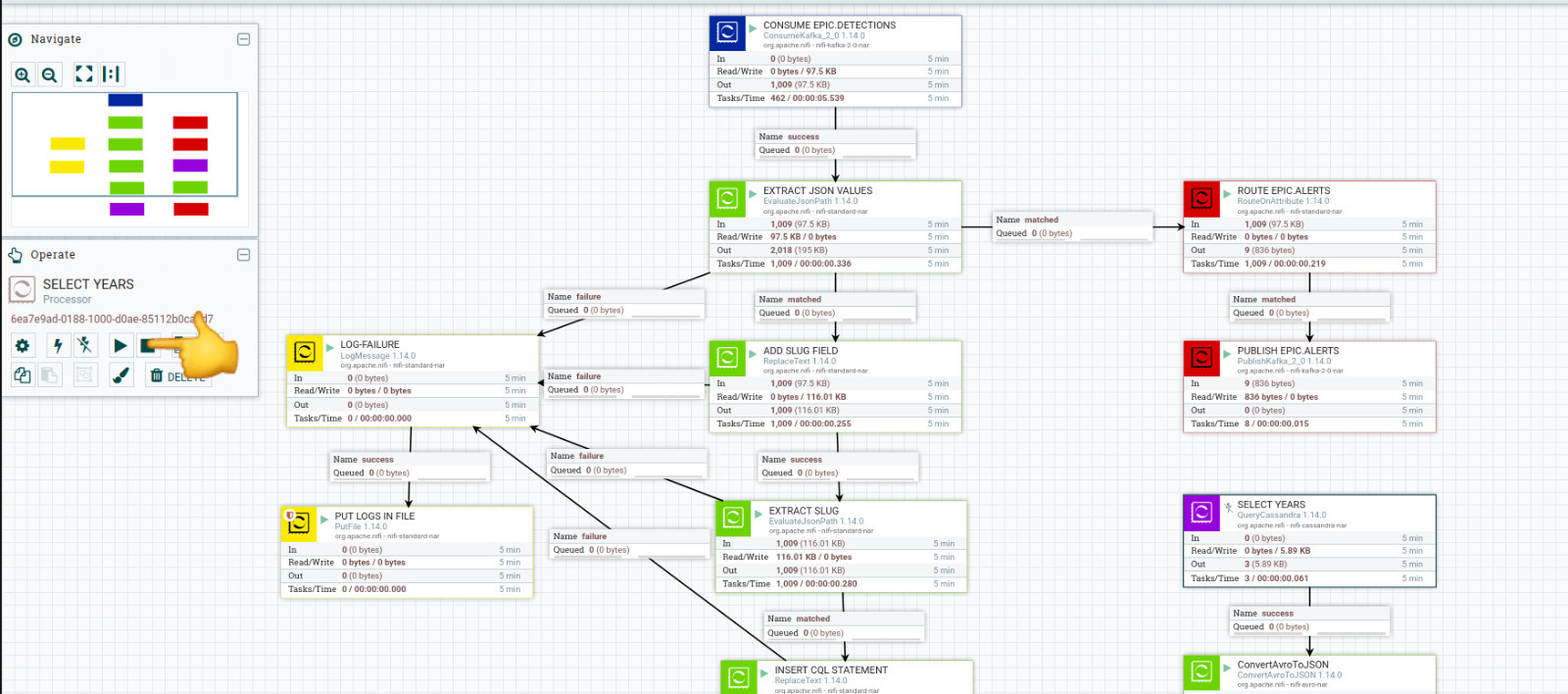
- Remember to enable the SELECT YEARS processor. Then press "run once" to generate the necessary data whenever you need to update the histogram data.
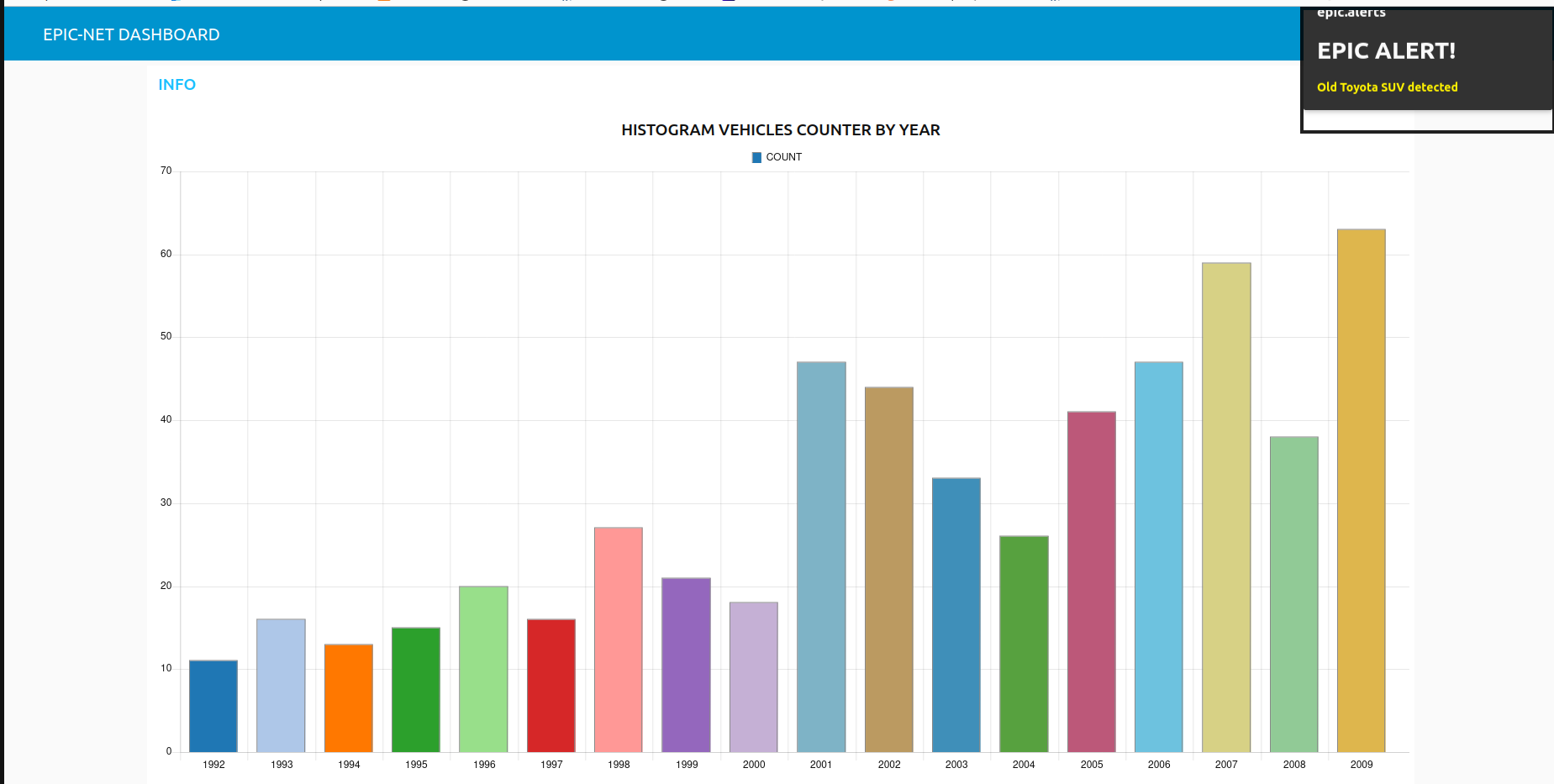
- If you got to
localhost:1880/ui- You will see the custom EPIC-NETWORK dashboard for the alerts and vehicles histogram.
- And if you list the 'cars' table in the database, you will see all the information stored
cqlshUSE epicnet;SELECT * FROM cars;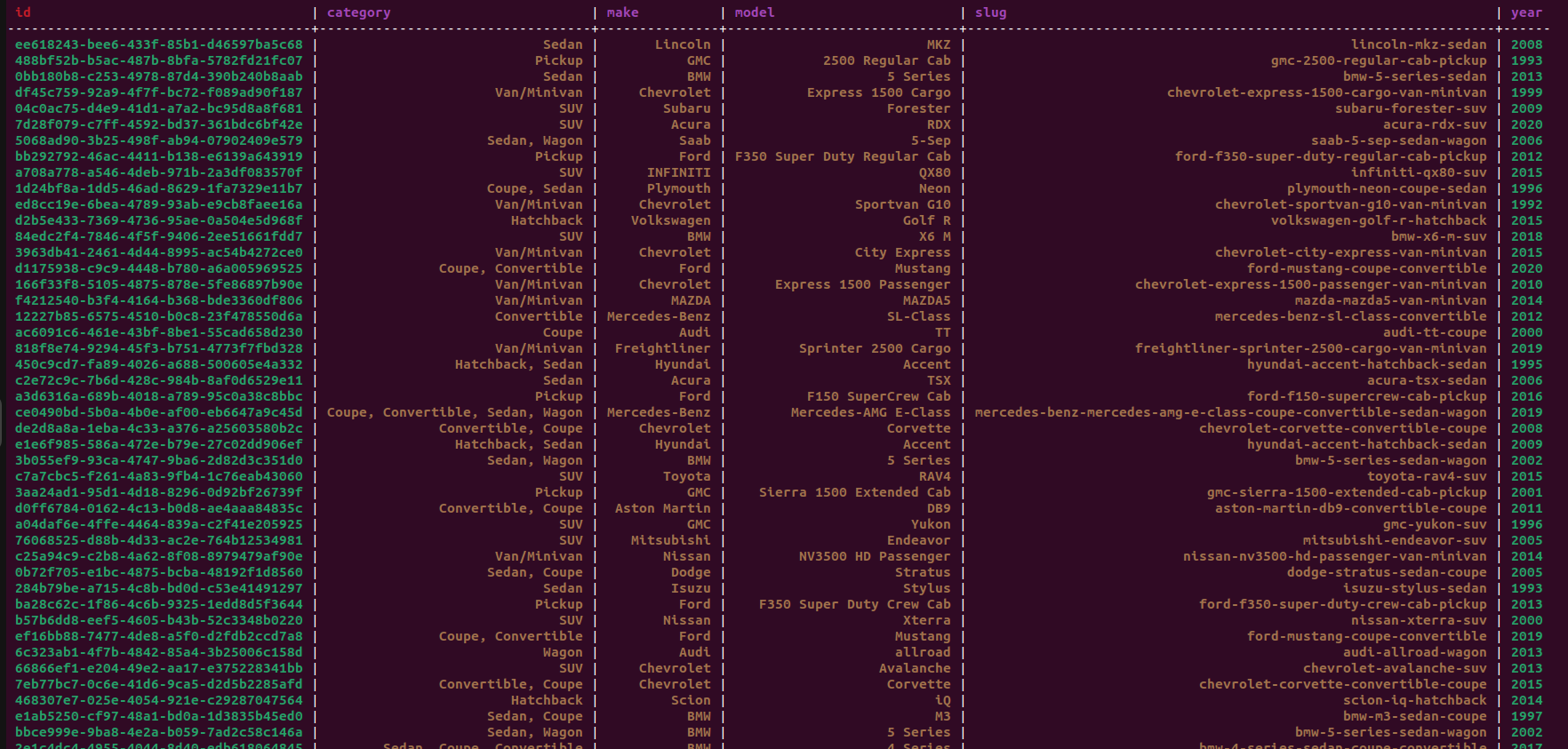
- Docker, Apache Kafka, Apache Nifi, Node-RED, Apache Cassandra, Python
- Tomás Navarro - @tomasnavb