-
Notifications
You must be signed in to change notification settings - Fork 2
SkillFishOS Control Center
skillfish-control-center — one window for tuning, monitoring and looking after the BC-250. Since the 26.09.x packages it replaces the separate Tuner, Monitor (formerly Telemetry), Fan Control, Kernel Manager, Snapshots and AI apps: they are now sections of this one window. Menu: SkillFishOS → Control Center.
A gamepad works too (python3-evdev): D-pad/left stick move focus, A confirms, B goes back, LB/RB switch section, Start opens Status.
Full walkthrough with screenshots: https://skillfishos.com/en/docs/control-center/.
skillfish-tuner, skillfish-monitor, skillfish-fan, skillfish-kernel-manager, skillfish-snapshots and skillfish-ai-panel still exist as commands — each just opens the Control Center on the matching section. Their packages stay installed because they carry the daemons and helpers the window depends on: the fan daemon, the tuner helper, the CU boot service, the Unsloth launcher and updater.
| Section | What it does |
|---|---|
| Status | One glance at the board |
| Tuner | GPU voltage/frequency curve, CPU, Cores, CU, VRAM, Advanced, Test |
| Fan | Fan curve, sensors, lead, safety limits |
| Monitor | Live charts, recording to .sfmon
|
| Games | Mesa build, scheduler, FSR 4, GE-Proton |
| Profiles | Quiet / Balanced / Performance, one click |
| Kernel | Installed kernels, default, boot once, uninstall |
| Snapshots | Btrfs snapshots and maintenance schedule |
| AI | Unsloth Studio: engine, models, chat, memory, network |
| Emulators | EmuDeck or Flathub, one by one |
| Console | Steam Big Picture in gamescope |
| ISO | Mount/unmount disk images (udisks) |
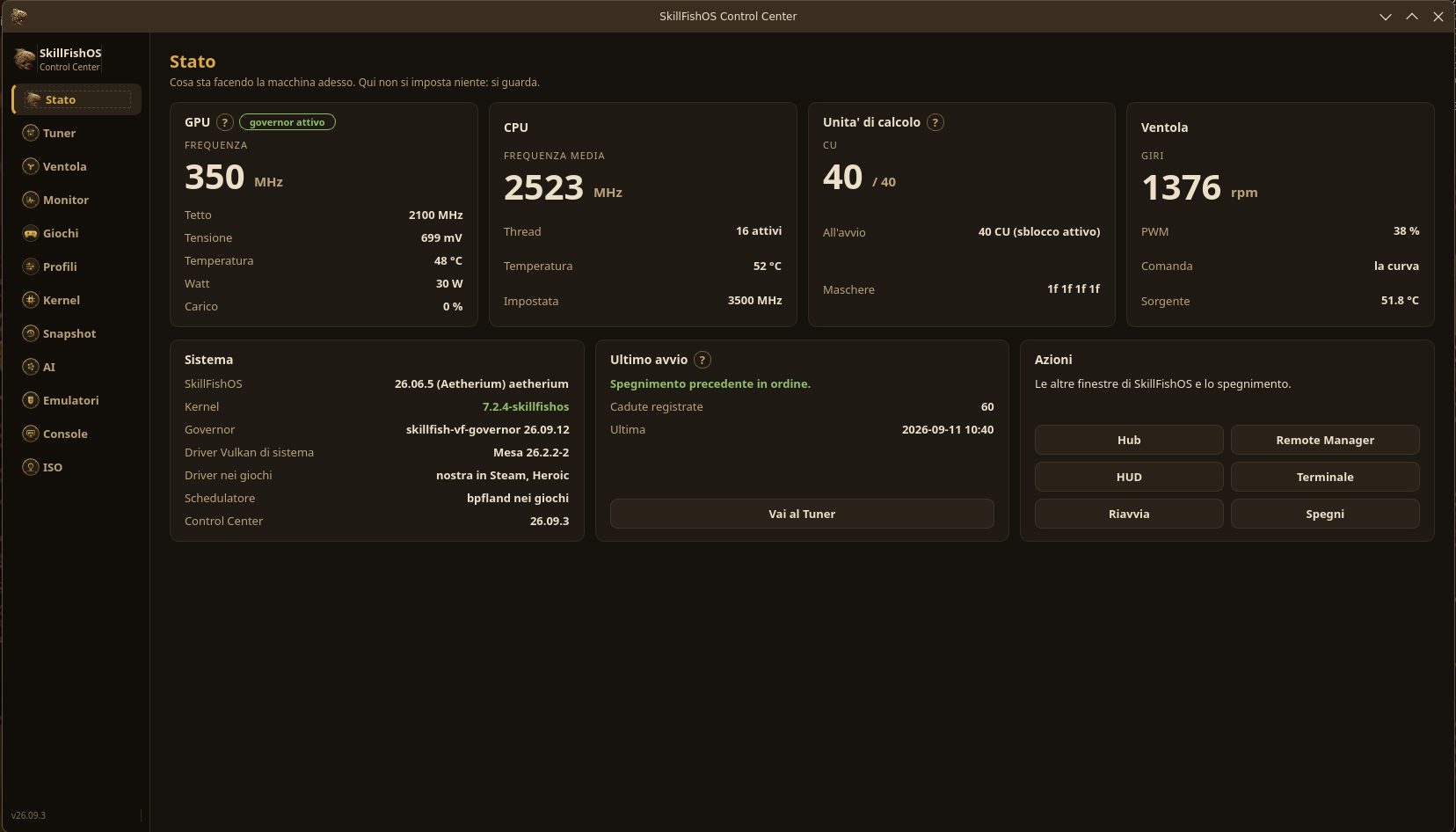
One number per card: GPU clock and its ceiling, CPU clock, active compute units, fan speed — plus the running kernel, the governor in use, the Vulkan driver in use, and whether the last boot followed a clean shutdown.
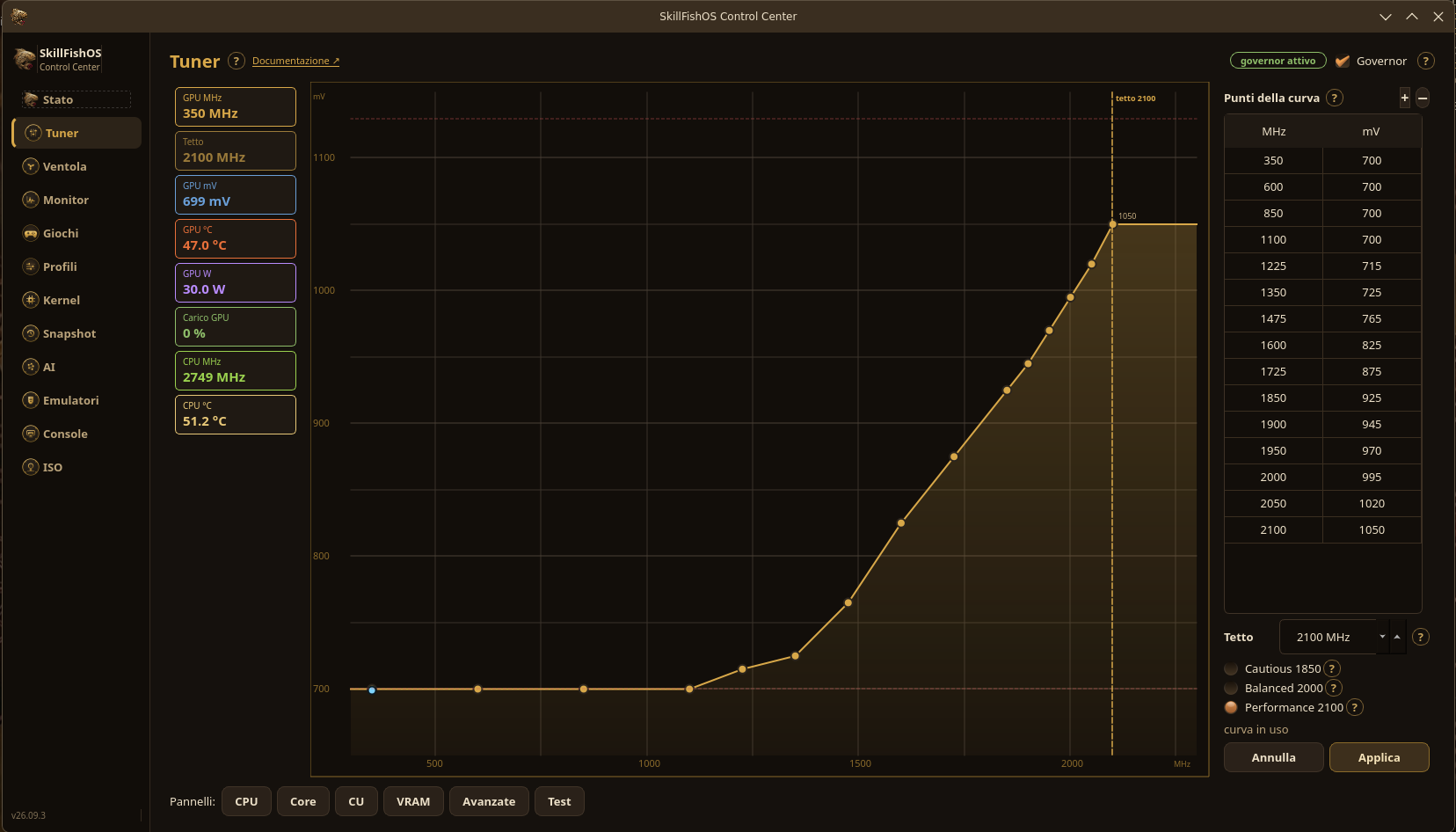
The GPU is driven by our V/F governor: a voltage/frequency curve drawn in a chart (MHz across, mV up). Knots are draggable on the chart and also editable in a table beside it. A ceiling caps the max MHz. Three presets: Cautious (1850 MHz), Balanced (2000 MHz), Performance (2100 MHz). Apply runs the candidate curve on trial for 25 seconds; the previous curve stays on disk unless you press Keep. Watch the trial in the Monitor section. See GPU Governor and Tuning.
Panels open on demand, beside the curve:
- CPU — clock, undervolt in steps of 6.25 mV, thermal limit. Suggest UV proposes a starting offset. Find my max sweeps 3600–4000 MHz. Test 60 s stresses the current setting with a countdown and a Stop button. Values under test are never written to disk until you keep them. See CPU Overclock and Undervolt.
- Cores — online core count, SMT, the 8-core unlock, and a "before boot (EFI)" unlock done in a single boot.
-
CU — the 40 compute units as 20 pairs (green/red/grey); type 24–40 in pairs or click cells; Test CU stresses a pair under
vkpeak. See Compute Units (40-CU). - VRAM — the UMA split written to CMOS, any value from 512 MB to 12 GB, with 512 MB/1/2/4/6/8 GB presets, applied at the next boot. See Memory VRAM and GTT.
- Advanced — the governor's lower-level knobs.
-
Test —
vkpeakplus the helper log.
Screenshots: Status · Tuner · Fan.
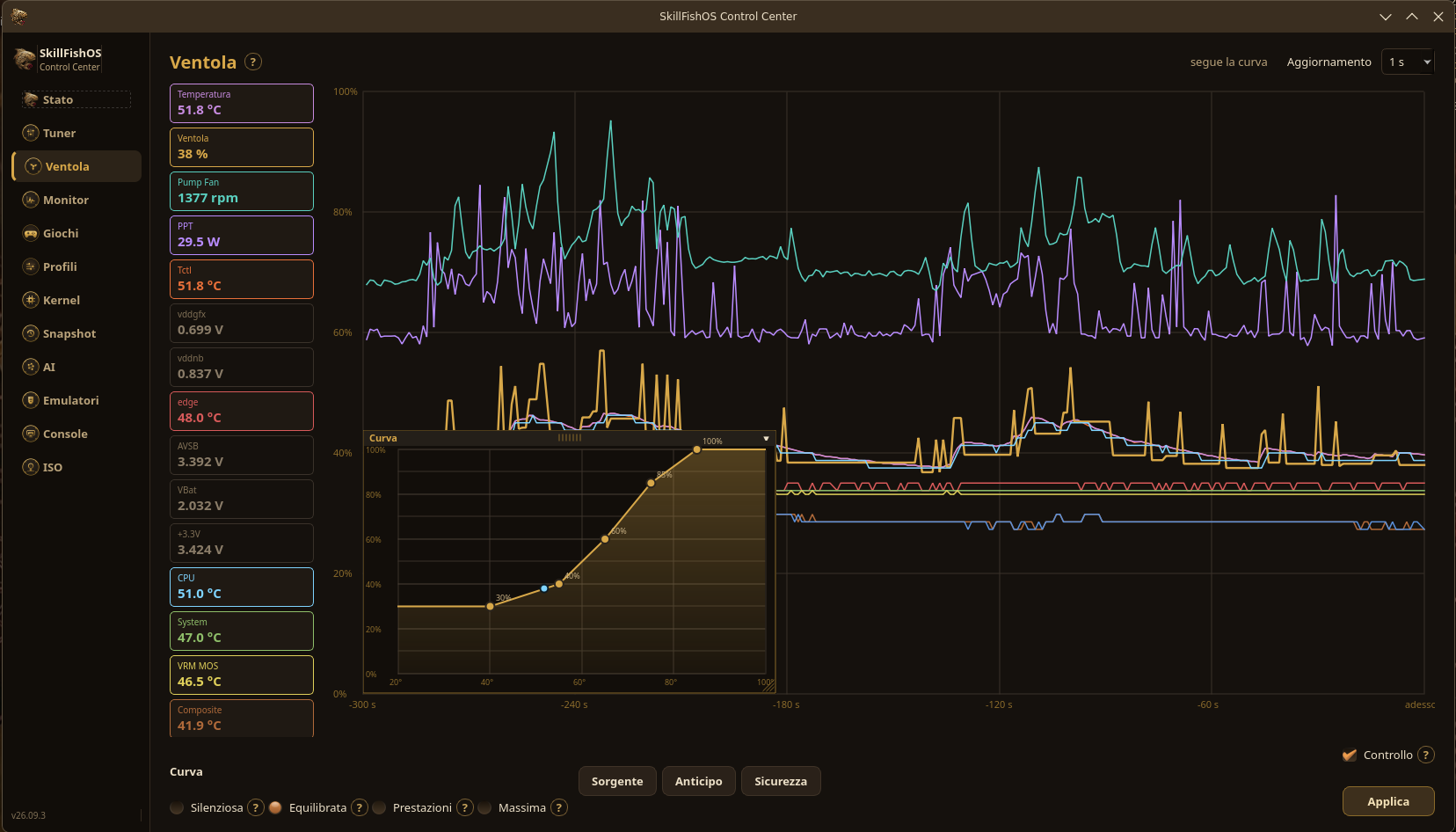
The fan curve, the sensors it reads from, a lead so the speed rises before the temperature does, safety limits, and a PWM test. The fan controller is a daemon: it keeps running whether or not the window is open.
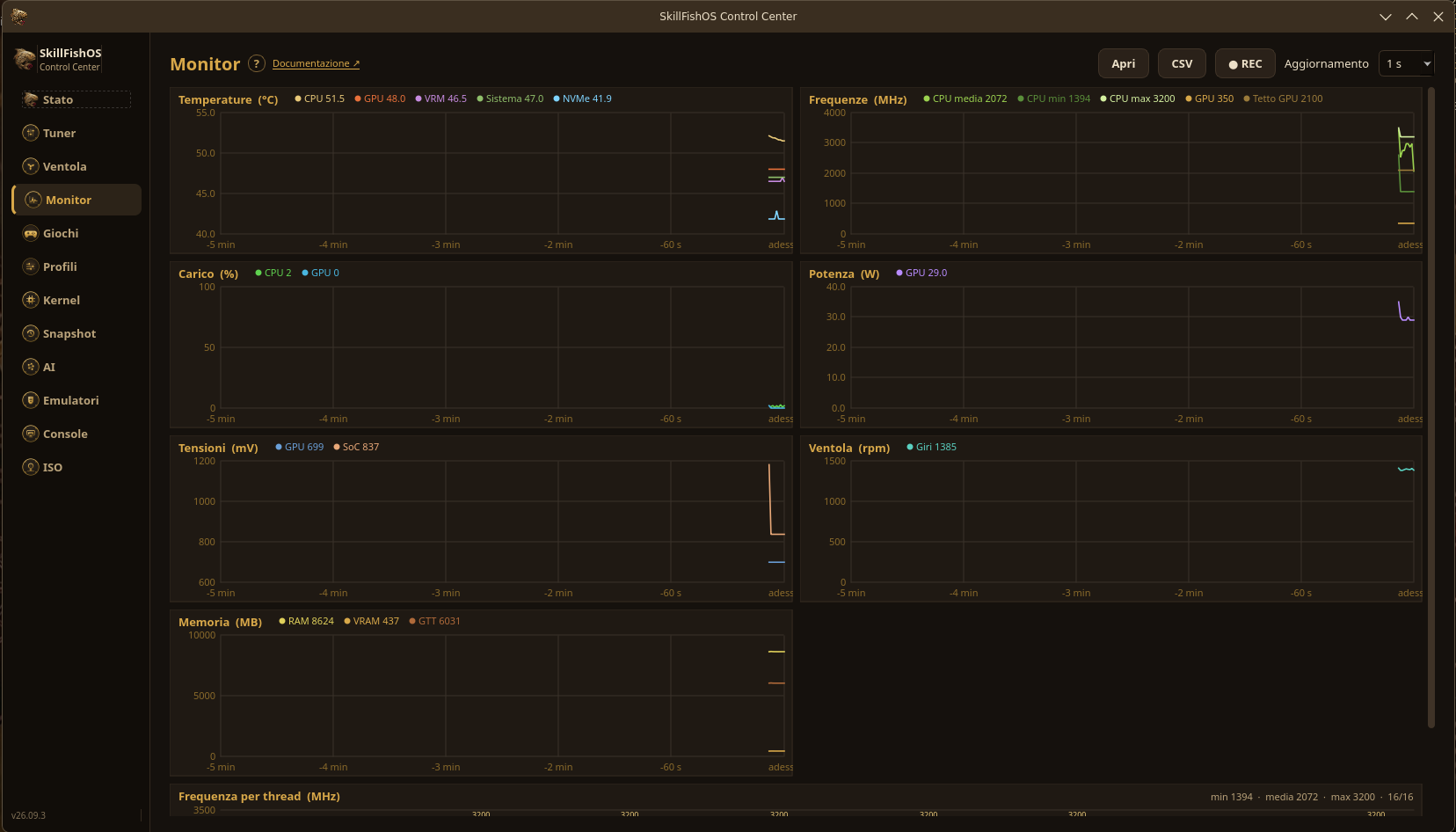
One chart per quantity, each with its real unit: temperatures (CPU/GPU/VRM/system/NVMe), clocks, load, power, voltages, fan, memory (RAM/VRAM/GTT) — plus one bar per CPU thread. REC writes a .sfmon file (CSV); Open reloads one with a time scrubber. CSV export is available too.
Screenshot: https://skillfishos.com/screenshots/control-center-monitor.png.
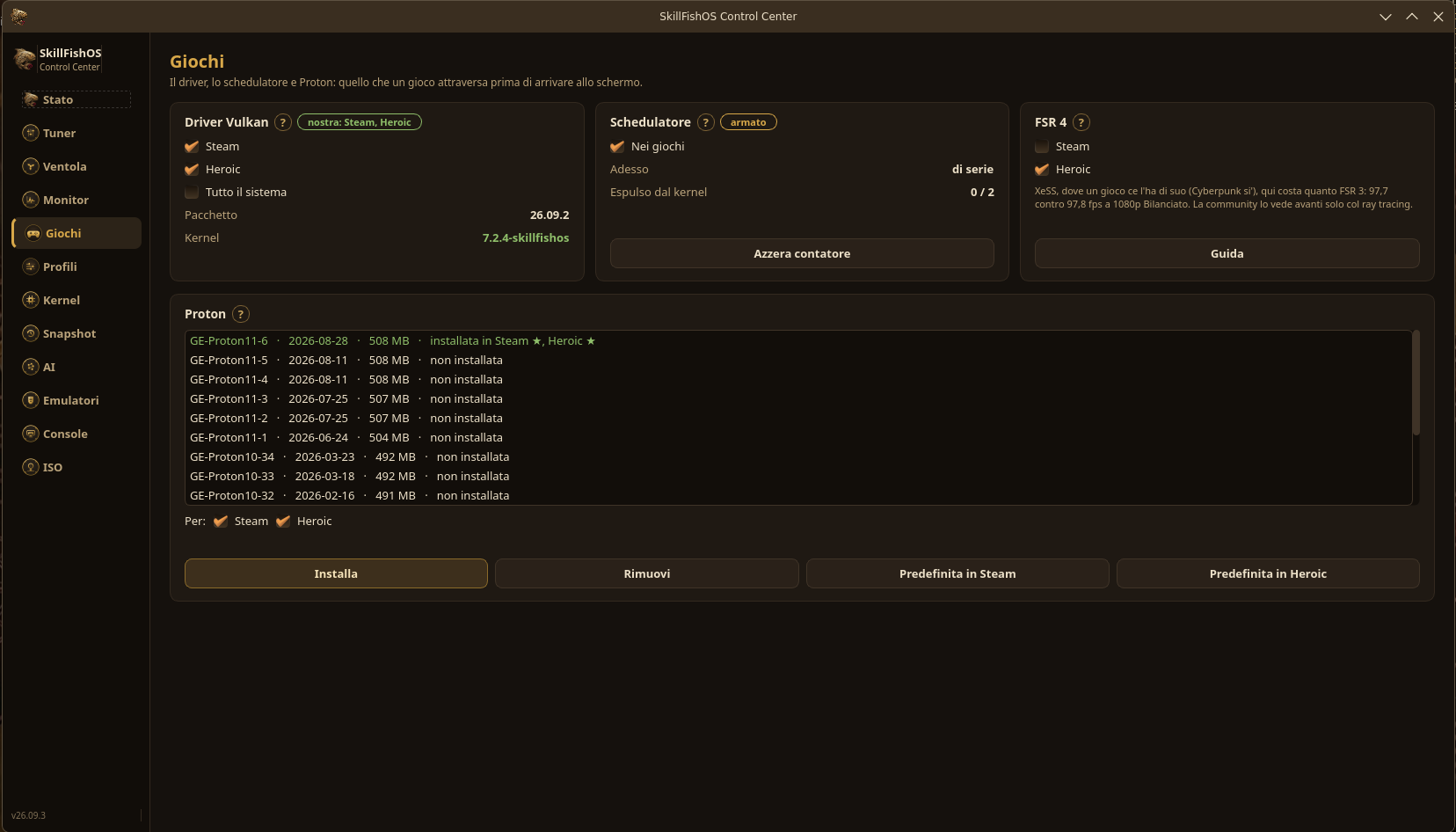
Our Mesa build (RADV with compute queues and FSR 4 support), applied per launcher (Steam, Heroic) or system-wide (needs the SkillFishOS kernel); the scx_bpfland scheduler armed through GameMode; FSR 4 through OptiScaler; GE-Proton 11 install, set as default for Steam and Heroic. See Gaming and Emulation.
Screenshot: https://skillfishos.com/screenshots/control-center-giochi.png.
Three ready profiles — Quiet / Balanced / Performance — each bundling a GPU ceiling, a CPU setting, a fan preset and a scheduler choice, applied in one click. You can also save your own.
Installed kernels, which one is the default, booting one once, and uninstalling old ones. See Kernel.
Btrfs snapshots and the maintenance schedule that prunes them. See APT Repository and Installation for how they tie into updates.
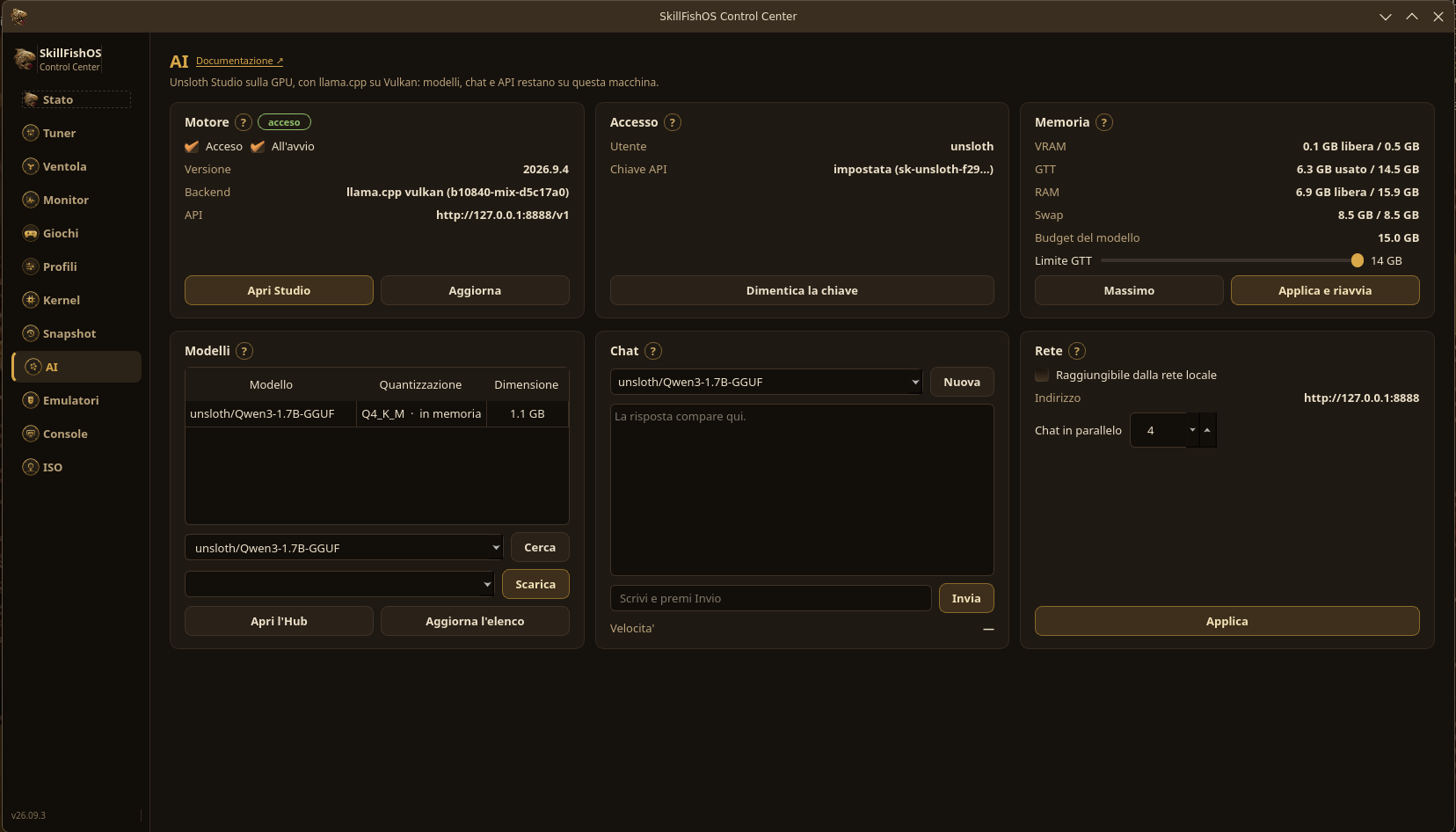
Unsloth Studio, running llama.cpp on Vulkan — the only GPU path on gfx1013, since ROCm does not support this chip. See On-device AI for the background.
- Engine — on/off, and "start at boot".
-
Version — the installed version with an update check and a one-click Update, which reruns the official installer with the Vulkan bundle forced (
skillfish-unsloth-update). - First sign-in — Unsloth generates a random initial password at install and shuts itself down after an hour if it isn't changed. The Control Center does this step for you: it lets you choose the Studio password and creates the API key in the same step.
- API key — create one from the Studio password, or paste an existing one. Shared with the Remote Manager.
-
Models — what's on disk, with quantization and size. Download GGUFs straight from the Hugging Face Hub by repository id (e.g.
unsloth/Qwen3-4B-GGUF), with the available variants listed by size. -
Quick chat — a small chat over the OpenAI-compatible API (
http://127.0.0.1:8888/v1), with measured tokens/second. - Memory — VRAM, GTT, RAM, swap, the model budget, and a GTT-limit slider (a kernel parameter — changing it needs a reboot).
-
Network — "reachable from the local network" opens Studio on
0.0.0.0:8888with its own login, and enables parallel chat slots inllama-server.
The full chat, Chat with Files (RAG), the model Hub page, parallel chats and Deep Research stay inside Studio's own UI at http://localhost:8888 — the Control Center's AI section is engine control and quick checks, not a Studio replacement.
Measured on the board with Qwen3-1.7B Q4_K_M: 210 tok/s generation on Vulkan against 41 tok/s CPU-only.
Screenshot: https://skillfishos.com/screenshots/control-center-ai.png.
Install EmuDeck, or pick emulators one by one from Flathub.
Launch Steam Big Picture inside gamescope right now, or from the SDDM login screen (skillfish-console still adds that entry). See Gaming and Emulation.
Mount and unmount disk images through udisks, without a terminal.
Apps · GPU Governor and Tuning · CPU Overclock and Undervolt · Compute Units (40-CU) · Memory VRAM and GTT · On-device AI · Benchmarks
Getting started
Apps
Tuning & hardware
Using it
Developers