
BetterJoy2 is a free, MIT-licensed, system-wide controller compatibility layer for Windows. It makes Joy-Cons, Switch Pro, Switch SNES/N64, DualShock 4, and DualSense controllers usable through standard virtual XInput or DualShock 4 output while preserving the motion, touch, lighting, audio, adaptive triggers, and device features that make the physical controllers worth owning.
BetterJoy2 does not require Steam, an account, online ownership checks, per-machine purchases, or paid feature tiers. Install it on the computers you own and use your controllers where you want. It can run independently as a Windows service, including across sign-in sessions and elevated applications.
The default goal is a clean, conventional virtual controller—not mandatory input remapping. For people who do want another mapping layer, BetterJoy2's standard virtual output remains compatible with Steam Input and other remappers. Optional BetterJoy2 profiles provide controller-native configuration, motion and touch behavior, button chords, and keyboard/mouse actions without making any of that a prerequisite for ordinary play.
BetterJoy2 also provides Cemuhook/DSU motion for Cemu, Dolphin, Citra-compatible emulators, and other compatible applications.
Controller support should behave like a system utility, not like a licensed game. BetterJoy2 grew out of frustration with controller software that requires user intervention, ties access to a storefront, limits simultaneous use across a person's own devices, divides hardware support into additional paid tiers, or requires users to assemble fragile remapping and device-hiding workarounds merely to avoid double input.
People should be paid for great software BUT nickle and diming + subscription practice is DISGUSTING!
BetterJoy2 takes the opposite approach:
- Works system-wide - the controller service does not depend on a game launcher or the GUI remaining open, and the optional virtual HID mouse reaches elevated applications and Windows session boundaries. Controllers should "Just work" without clunky UIs, startup apps or any nonsense!
- The software remains yours - no DRM, account activation, storefront launcher, machine entitlement, concurrent-use restriction, or feature DLC. I paid for DSX on Steam and still feel ripped!
- Remapping is optional - choose XInput or DualShock 4 output and play, or layer Steam Input or another remapper on top when its additional behavior is actually wanted.
- Double input is handled at the source - when HidHide is installed, BetterJoy2 can manage the physical controller's visibility before creating its virtual output, recognizes and rejects its own virtual devices during discovery, and provides an explicit unhide-on-exit policy.
- The implementation is inspectable - controller protocols, transforms, profiles, service behavior, and hardware integrations live in the open repository and can be audited, modified, or forked.
This fork (BetterJoy2) builds heavily on the original BetterJoy - see Acknowledgements for the foundation it's built on. Major additions include:
- FIRST CLASS Nintendo and PlayStation controller support - Joy-Con pairs or individual halves, Switch Pro, Switch SNES/N64, DualShock 4, and DualSense share one controller pipeline with XInput or DualShock 4 virtual output. Sony support includes buttons, sticks, analog triggers, battery state, rumble, lightbars, touchpads, audio and calibrated gyro/accelerometer motion.
- Two virtual-controller backends, plus a Passthrough option - the standard XInput/DualShock 4 output uses ViGEmBus, or profiles can instead use an alternative backend built on VIIPER/usbip-win2, which adds genuine DualSense virtual output - ViGEmBus has no DualSense target at all, so VIIPER is the only way to expose a real PS5-shaped virtual controller. A separate Passthrough mode skips virtual output entirely and unhides the physical controller instead, so another program (Steam, a game with native DualSense/Joy-Con support) can use it directly under its true identity while BetterJoy2 keeps handling gyro, touchpad, audio, and lighting in the background.
- Clean physical/virtual device ownership - integrated and automated HidHide management prevents games and remappers from consuming both the physical controller and BetterJoy2's virtual output. BetterJoy2 excludes its own virtual devices from discovery and can restore hidden controllers on exit.
- Gravity-referenced filtered gyro mouse - a full rework around "Player Space" motion math (adapted from GamepadMotionHelpers): yaw/pitch tracked relative to true gravity instead of the controller's raw local axes, attempts to keep aiming consistent when the controller is tilted or rolled. Includes low-speed tightening, adaptive smoothing, stationary-bias drift correction, and orientation-aware grip recentering.
- Gyro-to-stick - turn gyro rotation into virtual analog stick input, with three selectable modes (Rate, Absolute tilt, Hybrid), per-stick axes, inversion, configurable deflection limits, and a ratchet bind for repositioning your wrist mid-turn without it registering as reverse input (wip).
- Touchpad mouse, gestures, and stick output - DualShock 4 and DualSense touchpads can act as relative pointers or floating-origin virtual sticks. Profiles provide separate mouse/stick sensitivity, per-axis deflection limits, tap-to-click-and-drag, assignable one and two-finger taps, two-finger scrolling, click/scroll actions, activation chords, clenching, pressure lockout, and optional inhibition of conflicting controller actions.
- Silent auto-calibration - gyro, accelerometer, and stick centers are recalibrated automatically in the background the moment a controller is detected sitting genuinely still, no wizard or user action required. A guided manual recalibration wizard is still available for when it's needed. Auto-calibration is still a WIP.
- Runs as a Windows Service - the core controller pipeline runs independent of the GUI, surviving sign-out/sign-in. Works from elevated windows and the Windows lock screen, with crash recovery and a session-launched helper so keyboard/mouse actions still work across the all service boundaries.
- Per-controller profiles - matching profiles per physical controller cover virtual output, motion, touch, device behavior, and optional mappings. Bindings support physical-only capture, button combinations (chords are exact-match and order-sensitive, so a shorter combo doesn't fire while a real superset is held, and HOME+A is a different binding from A+HOME), an optional Modifier binding that inhibits ordinary output while held so a button can be used purely as a chord prefix, touch gestures, a mappable shake input, and reassignable virtual Guide/PS output without mapped outputs or button remaps contaminating subsequent bind capture.
- Controller-owned hardware behavior - profile-scoped rumble, lightbar colors (a fixed color, an automatic Battery mode that shows charge as green/yellow/red bands instead, a Default mode that leaves lighting entirely untouched for another program or the controller's own power-on default to control, or a Disabled mode that forces it off), an independent Player LED toggle for the small player-number indicator LEDs (DualSense, Joy-Con, Pro, SNES, and N64), battery percentage/status, Bluetooth disconnect with a configurable hold-to-power-off duration, headphone-jack detection and routing, gyro recentering, and controller-specific calibration remain attached to the physical device rather than being reduced to generic remapping concepts.
- DualSense adaptive triggers - assign independent, profile-scoped L2 and R2 resistance, weapon-wall, or vibration effects, each with its own separate start/secondary/strength values so switching effects never overwrites another effect's tuning. Effects work over USB or Bluetooth even when the game sees a virtual XInput or DualShock 4 controller, and remain composed with speaker, microphone, rumble, and lightbar state. Optional LT/RT haptics bindings cycle through effect modes on demand.
- Expanded controller function bindings - assign chords or buttons to adjust controller volume, cycle DualSense adaptive trigger effects, cycle rumble modes, toggle the built-in microphone, and toggle lightbar output on/off, alongside the existing physical remaps. Bindings that cycle through modes share the same underlying list as their matching dropdown, so adding a mode in one place updates both automatically.
- PlayStation controller audio - route Windows audio to DualShock 4 or DualSense speakers and connected headsets over USB or Bluetooth, with automatic jack switching and headphone-gated startup. Multiple audio-capable controllers can stream over Bluetooth at once, each with its own independent capture pipeline - a DualShock 4 and a DualSense can play simultaneously without interfering with each other. DualSense's Bluetooth audio jitter buffer is tuned for low latency by default (a synthetic-silence frame and a dedicated write pool absorb brief capture/write stalls, so a deep buffer isn't needed to hide them). Bluetooth audio transport is experimental because timing and reliability vary across Windows Bluetooth adapters and system load.
- DualSense microphone control - a genuine hardware-level mute (the controller's own power-save bit, not just an LED) over USB and Bluetooth, an assignable mute-toggle binding, and a configurable mute-LED indicator (matches Sony's own behavior, inverted, always off, or only lit while the mic is disabled). The Bluetooth microphone is exposed as a real Windows recording device via VIIPER by default, with an optional fallback to Valve's Steam Streaming Microphone driver for machines that would rather avoid VIIPER's dependencies. Choosing Enabled or Muted doesn't touch the controller's Bluetooth report stream by itself - the recording endpoint only actually opens, and the controller only switches into its mic-duplex reporting mode, once something genuinely starts capturing from it.
- Optional virtual HID mouse backend (via FakerInput) - lets gyro mouse work across elevated windows, the Windows sign-in screen, and service/session boundaries where the standard approach can't reach.
- Controller blacklist - block specific controllers from being auto-added over USB/Bluetooth.
If anyone would like to donate (for whatever reason), you can do so here.
The note below is retained from the upstream BetterJoy project whose work and history this fork inherits.
Thank you for using my software and all the constructive feedback I've been getting about it. I started writing this project a while back and have since then learnt a lot more about programming and software development in general. I don't have too much time to work on this project, but I will try to fix bugs when and if they arise. Thank you for your patience in that regard too!
It's been quite a wild ride, with nearly 590k (!!) official download on GitHub and probably many more through the nightlies. I think this project was responsible for both software jobs I landed so far, so I am quite proud of it.
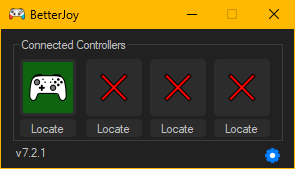
Go to the BetterJoy2 Releases tab!
- Install drivers
- Read the READMEs (they're there for a reason!)
- Run Drivers/ViGEmBus_1.22.0_x64_x86_arm64.exe
- Restart your computer
- Recommended: install Drivers/HidHide_1.5.230_x64.exe. On a fresh install BetterJoy2 enables Use HidHide automatically when the driver is detected, then manages each physical controller's visibility so games see only the selected virtual output. If HidHide is installed later, enable it under Global options and restart BetterJoy2.
- Run BetterJoyForCemu.exe
- Run as Administrator if your keyboard/mouse button mappings don't work
- Connect your controllers.
- For normal PC games, select XInput or DualShock 4 as the profile's virtual-controller output, then configure that controller normally in the game. BetterJoy2 profiles and downstream remapping are optional.
- For CemuHook/DSU applications, start the application and select BetterJoy2 as the motion source.
- If using Joycons, CemuHook will detect two controllers - each will give all buttons, but choosing one over the other just chooses preference for which hand to use for gyro controls.
- In Cemu's Input Settings, choose XInput as a source and assign buttons normally.
- If you don't want to do this for some reason, just have one input profile set up with Wii U Gamepad as the controller and enable "Also use for buttons/axes" under GamePad motion source. This is no longer required as of version 3
- Turn rumble up to 70-80% if you want rumble.
Check out the wiki! There, you'll find the changelog, app-setting descriptions, FAQ, and troubleshooting information.
- Hold down the small button (sync) on the top of the controller for 5 seconds - this puts the controller into broadcasting mode.
- Search for it in your bluetooth settings and pair normally.
- To disconnect the controller - hold the home button (or capture button) down for 2 seconds by default (or press the sync button). To reconnect - press any button on your controller. This hold duration is configurable per profile, up to 10 seconds - useful if you're also using that button as a chord modifier for other bindings.
- Joy-Con lag/stutter over Bluetooth: this is a Windows Bluetooth stack quirk specific to Joy-Cons (Pro Controller is unaffected), not something BetterJoy's code can fix directly. The workaround: rename your PC's Bluetooth adapter (not the controller) to
Nintendoin Windows' Bluetooth settings. This has been confirmed to eliminate the lag/stutter entirely.
- Plug the controller into your computer.
- Go into "Bluetooth and other devices settings"
- Under the first category "Mouse, keyboard, & pen", there should be the pro controller.
- Click on it and a "Remove" button will be revealed.
- Press the "Remove" button
- Install Visual Studio (Community edition is fine) with the .NET desktop development workload - official guide.
- Get the code via Git or the Download ZIP button.
- Run
build.batin the repo root. It locates MSBuild, restores NuGet packages, and builds Release|x64. - If Inno Setup is also installed, it additionally packages the build into an installer at Installer\Output\BetterJoy-Setup-vVERSION.exe. If not, this step is skipped and you still get a working build.
- If you didn't already, install Visual Studio Community via the official guide. When asked about the workloads, select .NET Desktop Development.
- Get the code project via Git or by using the Download ZIP button.
- Open Visual Studio Community and open the solution file (BetterJoy.sln).
- Open the NuGet manager via Tools > NuGet Package Manager > Package Manager Settings.
- You should have a warning mentioning restoring your packages. Click on the Restore button.
- You can now run and build BetterJoy.
- Download Visual Studio Build Tools via the official link.
- Install NuGet by following
the official guide.
You should follow the section for nuget.exe.
Verify that you can run
nugetfrom your favourite terminal. - Get the code project via Git or by using the Download ZIP button.
- Open a terminal (cmd, PowerShell, ...) and enter the folder with the source code.
- Restore the NuGet dependencies by running:
nuget restore - Now build the app with MSBuild:
The available values for CONFIGURATION are Release and Debug. The available values for PLATFORM are x86 and x64 (you want the latter 99.99% of the time).
msbuild .\BetterJoy.sln -p:Configuration=CONFIGURATION -p:Platform=PLATFORM -t:Rebuild - You have now built the app. See the next section for locating the binaries.
The built binaries are located under
BetterJoyForCemu\bin\PLATFORM\CONFIGURATION
where PLATFORM and CONFIGURATION are the one provided at build time.
There is A LOT of love and hate around AI right now, with legitimate concerns about code quality, livelihoods, authorship, identity, and what any of this means for skilled work. Until recently, I was reluctant to use AI for even mundane tasks, let alone something this complex. I also deal with plenty of imposter syndrome, or maybe just an uncomfortable awareness of exactly where my own knowledge ends.
I'm not going to pretend that AI helping me write code suddenly makes me a computer scientist or gives me decades of low-level Windows input experience. It doesn't. There are developers who understand and can write this code at a level I cannot, and I respect the hell out of that. What AI has done is remove a massive implementation barrier between understanding a problem, having a vision for how it should behave, and being able to test that vision in working software.
My role in this project is closer to a technical director than a traditional programmer. I define how the system should behave, identify the problems and edge cases that matter, direct the implementation, test it against real hardware, analyze failures, and decide whether the result is actually good enough to ship. I may not understand every subsystem from first principles, but I have a very specific vision for the system's surface behavior. That is not superficial. It is the reason the underlying engineering exists.
A technically sophisticated implementation is still wrong if a controller reconnects under the wrong player number, a Joy-Con cannot transition cleanly between solo and paired operation, the GUI fights with an already-running service, or the gyro mathematically works but feels like shit in your hands. The implementation has to serve the behavior.
AI has dramatically expanded what I can build, but it has not eliminated the need for expertise or judgment. If anything, faster implementation makes judgment more important: bad ideas can become working code just as quickly as good ones. Code can compile, look convincing, and survive a quick test while still being fundamentally wrong once it meets real hardware and real-world edge cases. I still have to know what to ask for, what to test, which assumptions to challenge, what to throw away, and when something that looks correct in the source clearly is not.
So yeah, call it AI-assisted, vibe coded, AI-written, or whatever you want. I'm not going to hide the toolchain or claim expertise I do not have. AI helps produce and analyze implementations at a speed I could never achieve manually. The vision, requirements, hardware validation, interpretation, judgment, and decision to ship remain mine.
Judge the project by what it actually does, how reliably it does it, whether the work of others is properly credited, whether its problems are documented honestly, and whether the software keeps getting better.
BetterJoy2 is built on a long chain of open-source controller work. The following projects contributed code, algorithms, protocol knowledge, or concrete implementation patterns used by this repository:
- BetterJoy / BetterJoyForCemu by David Khachaturov (Davidobot) is the original project and the foundation of this fork. Its Joy-Con protocol, controller lifecycle, CemuHook motion server, input mapping, and ViGEm output work remain at the core of this codebase.
- JoyconLib by Looking-Glass and JoyCon-Driver by mfosse provided the early Joy-Con HID/protocol implementations from which BetterJoy's controller code was derived.
- GamepadMotionHelpers by Julian "Jibb"
Smart is the principal reference for the current filtered gyro-mouse and gyro-stick motion
math.
GyroMousePlayerSpaceadapts its Y-up coordinate convention, gyro-propagated gravity tracking, shakiness-aware accelerometer correction, world-space yaw/pitch projection, and side-on singularity reduction. BetterJoy adds Joy-Con-specific axis normalization, grip recentering, diagnostics, and hardware-tested drift compensation around that foundation. - JoyShockMapper and the actively developed Electronicks fork were reference implementations for gyro-space selection and practical pointer behavior. BetterJoy's mapped 2D smoothing, low-speed tightening, real-world traversal/sensitivity control, and separation of gravity reference from gyro-produced cursor displacement were informed by this work.
- JoyShockLibrary, also by JibbSmart, informed
the canonical Nintendo-to-Y-up sensor frame and reference mouse behavior. Its v3.0 release is
additionally used by the standalone controller timing harness under
tools/JoyShockTiming. - Sebastian Madgwick's IMU/AHRS algorithm and the C# implementation published by
x-io Technologies are the
source of
MadgwickAHRS.cs, subsequently hardened and extended in BetterJoy with reset and recenter behavior. - FakerInput by Ryochan7 supplies the optional signed virtual HID input driver. BetterJoy's FakerInput backend implements its HID control protocol for relative/absolute mouse movement, wheel reports, and mouse-button state so gyro mouse can work across elevated windows, the Windows sign-in screen, and service/session boundaries. The bundled installer and license remain attributable to the upstream project.
- The UDP server is largely derived from rajkosto's ScpToolkit. ViGEmBus, ViGEmClient, HidHide, and their management libraries come from Nefarius.
- DualShock 4 Bluetooth audio (live speaker streaming over Bluetooth, SBC-encoded) is adapted
from nefarius/DS4AudioStreamer (MIT) - report
layout, volume field offsets, and SBC encoder parameters, ported into
DualShock4.csandBluetoothAudioCapture.cs. The SBC codec itself is nefarius/libsbc, bundled aslibsbc.dll; unlike the rest of this MIT-licensed project, that native library is GPL-2.0. Its P/Invoke binding (SbcEncoder.cs) is ported from nefarius/SharpSBC (MIT), part of the same repository. Sample-rate conversion from the captured device's native rate down to the 32kHz the codec needs uses libsamplerate by Erik de Castro Lopo and the libsndfile team (BSD-2-Clause), bundled assamplerate.dll; its P/Invoke binding (SampleRateResampler.cs) is ported from nefarius/DS4AudioStreamer's own SharpSampleRate wrapper. The startup audio-buffer priming strategy (accumulating a cushion of encoded frames before streaming begins, rather than starting the instant any are available) was informed by buffering constants found in hbashton/DS4Windows's DualShock4 Bluetooth audio implementation. - DualSense Bluetooth speaker and headset audio was implemented from protocol behavior documented
and exercised by hbashton/DS4Windows (GPL-3.0 reference
project). That work provided the principal reference for the
0x36combined Bluetooth carrier,0x93speaker and0x96headset packet types, fixed 200-byte/160-kbit Opus frames, report and media sequencing, volume/routing state, and the 10.667 ms presentation cadence. The working Kodzinho/DualSense-Bluetooth-Audio implementation (MIT) additionally informed the continuous 512-source-frame to 480-Opus-frameClockFix, fixed-size Opus framing, queued HID delivery, and speaker/headset target handling. That project's own protocol lineage credits awalol/dualsense-bt-haptics (MIT). BetterJoy's implementation was integrated into its existing controller-ownedDualSense.csoutput path and shared session-helper architecture; source code from the GPL reference project is not incorporated into this repository. The physical headphone/microphone detection bits and common input/output report layout were independently cross-checked against Sony's upstream Linuxhid-playstationdriver (GPL-2.0-or-later). - DualSense Opus encoding uses Concentus 2.2.2 by Logan Stromberg, a managed C# implementation of the Xiph.Org Opus codec distributed under its BSD-style license. NAudio (MIT) supplies Windows WASAPI endpoint discovery, loopback capture, and USB test-tone playback. The event-synchronized loopback and stereo-downmix design used by the shared capture pipeline was adapted from the MIT-licensed DS4AudioStreamer work credited above, while libsamplerate performs the continuous controller-specific clock conversion before SBC or Opus encoding.
- DualSense Bluetooth microphone transport uses the public 71-byte mono Opus input-report format
documented and exercised by hbashton/DS4Windows, then
decodes it independently in BetterJoy with Concentus. The default Windows recording endpoint is
provided by VIIPER (GPL-3.0 standalone server) over its public
V5 localhost framing API, with the signed virtual USB host controller from
usbip-win2. BetterJoy does not link against either
project: it launches the separately licensed VIIPER process on demand and exchanges framed PCM
over TCP. An optional alternative backend instead uses
Valve's Steam Streaming Microphone driver, already
Microsoft-attestation-signed and requiring no test-signing mode. The bundled
.inf/.cat/.sysfiles underDrivers/are byte-for-byte copies of Valve's own signed driver - modifying them would break the CAT's signature and Windows would refuse to load it - installed under Steam's own hardware ID via the same SetupAPI device-creation sequence Steam's own installer uses, so it's a no-op if Steam already created the device itself. The physical mic button controls hardware/software mute while remaining available to the ordinary binding system. - DualSense adaptive-trigger effect packing is adapted from John “Nielk1” Klein's
MIT-licensed TriggerEffectGenerator,
copyright 2021–2022. USB report offsets were cross-checked against Microsoft's
MIT-licensed GameInput DualSense helper,
while the shared USB/Bluetooth report structure was checked against the public Linux
hid-playstationprotocol definition.
The following projects were reviewed as independent comparisons for gyro mouse, gyro-to-stick, calibration, smoothing, sensitivity, remapping, and Windows virtual-controller behavior. Their source was not copied directly into BetterJoy, but their approaches materially informed design decisions and hardware tests:
- Yamakaky/gyromouse
- ascarrambad/gyromouse
- Handheld Companion
- DS4Windows
- GyroWiki for the documented player-space, world-space, sensitivity, calibration, and gyro-aiming principles implemented by the projects above
Third-party copyright and license notices for code and binaries distributed with BetterJoy are also retained in LICENSE and alongside bundled driver packages.
A massive thanks goes out to rajkosto for putting up with 17 emails and replying very quickly to my silly queries. The UDP server is also mostly taken from his ScpToolkit repo.
Also I am very grateful to mfosse for pointing me in the right direction and to Looking-Glass without whom I would not be able to figure anything out. (being honest here - the joycon code is his)
Many thanks to nefarius for his ViGEm and HidHide projects! Apologies and appreciation go out to epigramx, creator of WiimoteHook, for giving me the driver idea and for letting me keep using his installation batch script even though I took it without permission. Thanks go out to MTCKC for inspiration and batch files.
A last thanks goes out to dekuNukem for his documentation, especially on the SPI calibration data and the IMU sensor notes!
Massive thank you to all code contributors!
Icons (modified): "Switch Pro Controller", " Switch Detachable Controller Left", "Switch Detachable Controller Right" icons by Chad Remsing from the Noun Project. Super Nintendo Controller icon by Mark Davis from the the Noun Project; icon modified by Amy Alexander. Nintendo 64 Controller icon by Mark Davis from the the Noun Project; icon modified by Gino Moena.